How to connect a website to a database
· updated 1276 seen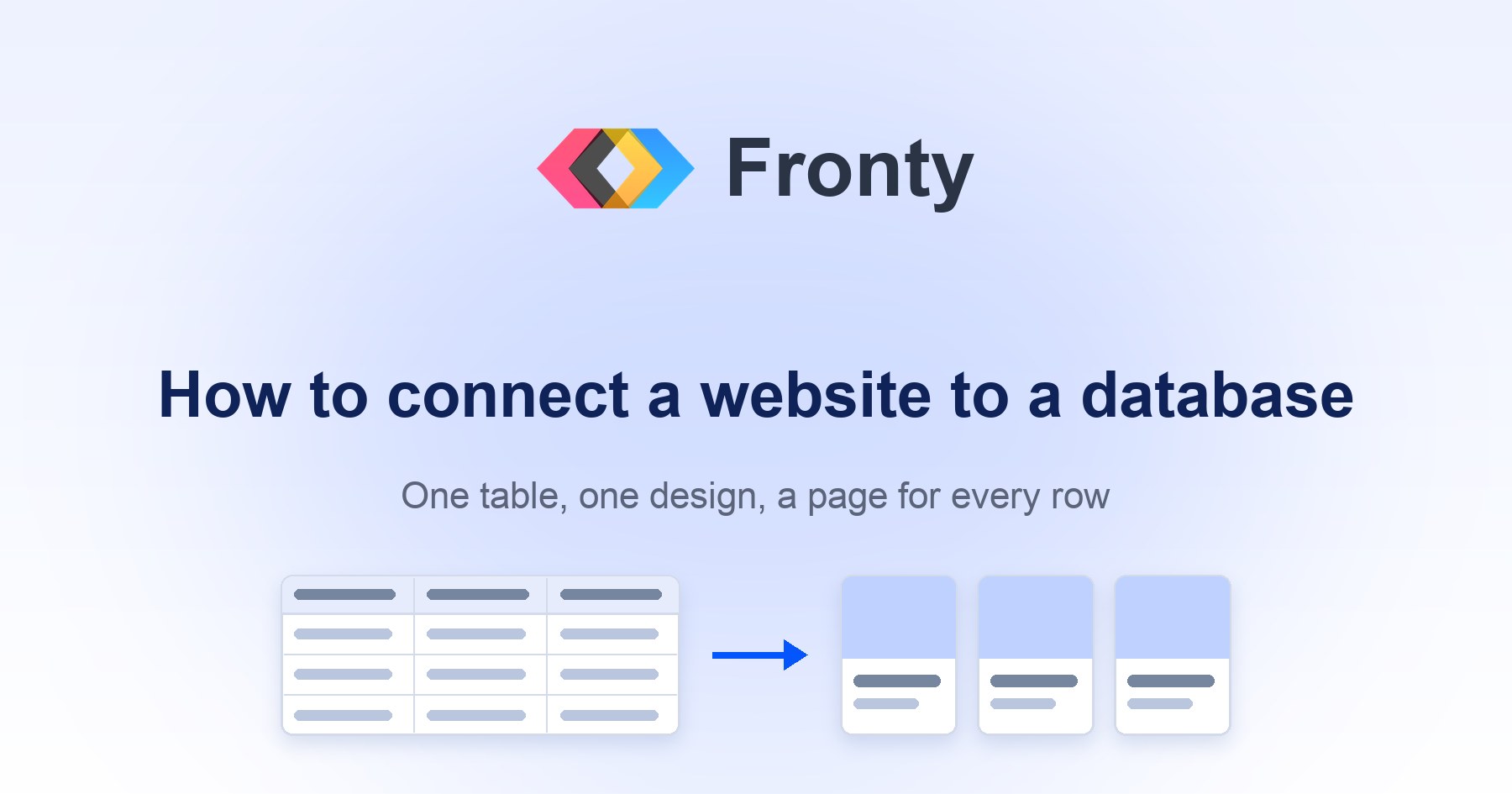
Every site reaches the same wall. Twelve team members, thirty blog posts, forty products — and each one is its own page, duplicated from the last one and edited by hand. The design drifts. Someone leaves and their page stays up. Changing the layout means changing it forty times.
The fix is old and it is the same one every CMS uses: connect the website to a database. Keep the things in a table, design one of them, and let the page render the rest. This is how to do that in Fronty, in the order you actually do it.
1. Put the repeating thing in a database table
Start from the data, not the page. Open the database and make a table with one row per thing and one column per fact about it. A team table might be:
- name — text
- role — text
- photo — image
- bio — rich text
- slug — text, and this one matters more than it looks
Rows get there however suits you: typed in the grid, submitted through a form, or written for you from a description with AI data fill.
The slug is the part of the web address that identifies one
row: sarah-chen, david-miller. Keep it
lowercase, no spaces, and unique — two rows with the same slug means one
address for two people, and neither of them gets a page. Everything in step 3
hangs off this column.
Column types are worth getting right now rather than later. An image column gives you a picker and a library instead of a URL you have to paste; a gallery column holds several images in a deliberate order; a video column takes a YouTube or Vimeo link or a file. The type decides what you can connect it to on the page.
2. Design one card, get all of them
Add a collection to the page and point it at the database table. What you get is one card — and that card is the design for every row. Edit it once, in the editor, and the whole list follows.
Edit one card. Every item on the page follows it.
This is the leverage, and it is worth being deliberate about. Move the photo above the name, add a badge, change the spacing: it happens to all of them, including the rows you add next year. There is no version of this where twelve cards drift apart, because there are not twelve cards. There is one.
The fields inside the card stay connected to their columns while you move them around. Restyling the card does not disconnect it from the data.
3. Give each database row its own page
A list is not enough for most content. A blog post needs a page you can link to and share. A team member needs somewhere to put the long biography a card cannot hold. A product needs its own address for search results.
That is an item page: one design that answers at a different address for every row — a dynamic page generated from the database rather than one you stored and have to maintain.
Each item opens at /team/<slug>
You do this once, in Page for each item. Three answers:
- which table the items come from;
- which column is the web address — the slug from step 1;
- which column is the title, so browser tabs and search results name the item rather than the template.
From then on, /team/sarah-chen and
/team/david-miller are the same page reading two different
rows. You maintain one design. Adding a row publishes a page.
4. Connect the elements to the database
The item page starts out as a normal design with placeholder text in it. Connecting an element replaces "whatever I typed here" with "whatever this row says in this column".
Select an element, use Connect to data, and pick a column. The element then shows that column's value for whichever row the address names. It is no longer text you edit on the page — it is a question the page asks the database, answered again for every visitor.
The picker only offers columns the element can actually use, which saves the most common half hour of confusion. An image element wants an image column; a gallery wants a gallery; a text element takes almost anything. When a column type and an element do not match, the editor says which one to change rather than connecting them and rendering nothing.
What this buys you
Once the four steps are done, the ordinary work gets much smaller:
- Adding something is adding a row. A new team member is a row in a table, and the card and the page both exist immediately.
- Removing something is deleting a row. No orphaned page left up because nobody remembered it.
- Restyling is one edit. The card design, or the item page design, once.
- Someone non-technical can maintain it. Editing a table is editing a spreadsheet. It does not involve the page at all.
One thing to watch: a collection pointed at an empty table renders nothing, and an empty space on a page is easy to miss. The readiness check reports it by name, along with the other things you stop seeing on your own site.
Three things worth doing while you are there
Give each item its own title and summary
An item page is one stored page, so by default every item would share its
title and its search summary — thirty posts competing for one snippet, and
every shared link previewing as "Blog template". In the page settings you can
write both from the item's own columns, with placeholders:
{{ name }} — Our Team. Search engines and link previews get the
resolved version, not the template's.
Filter the list
A collection does not have to show everything in the table. Filter it to one category, sort it by date, limit it to the newest three. The filter runs on any column in the table — including ones the card never displays, which is usually where the useful filters live: a status, a category, a "featured" flag.
Keep nested things nested
Some facts are lists of their own: a team member's social links, a product's
specifications, an FAQ's questions. Those belong in a nested or related column
rather than in six flat columns named link1 through
link6. Components that take a list — social icons, accordions,
tables, another collection — connect straight to that column.
When not to bother
This is real setup, and it is not always worth it. Three services that never change are faster written as three blocks on a page. A database earns its place when the list grows, when more than one page shows the same things, when each item needs its own address, or when the person maintaining it should not have to open the editor at all.
The honest test: if you would dread being asked to add fifteen more, use a table. If you would not, do not.


